Search This Blog & Web

Thursday, May 6, 2010

Backups techniques and script

Back Up Your Database in SQL Server 2005

There are several types of backup methods in SQL Server 2005. In this time, I'll tell you about full backup, differential backup, incremental backup, and transaction log backup.
Full Backup. This type of backup will lets you to backup all of extents of your database.  In my previous articles, I've already explain about extent in SQL Server 2005. SQL Server always save your data in pages and extents. 1 pages contains 8 Kb of your data, and 1 extents is a group of 8 pages which contains 64 Kb data of your database. To use this type of backup, you must set your recovery model to full, before you backup your database. To set your database recovery model, you can use this query :
        ALTER DATABASE [ database_name ]
        SET RECOVERY [ FULL | BULK_LOGGED | SIMPLE ]
,and you can do full backup by using this query :
        BACKUP DATABASE [ database_name ] TO DISK = '\' WITH INIT
TO DISK clause specify the location of your backup device, while WITH INIT clause is the common clause to tell SQL Server to overwrite existing data in backup device.  You can make backup device by using SSMS or simply by using this query. Backup device is logical backup medium to save your backup data. It has extension .bak.
Differential Backup. This type of backup will backup your database since the last full backup. SQL Server will make extent map to recognize the new data in your database. When you insert data in your database, extent will have bit with 0 to 1 to represented their information. After you do full backup, it will be reseted to 0, in this way SQL Server know which data that have to be backed up in differential backup methods.Notes that you can do this type backup if you have done full backup to your database.
You can do differential backup by using this query :
        BACKUP DATABASE [ database_name ] TO DISK = '\' WITH DIFFERENTIAL
Incremental Backup. This type of backup looks similar to differential backup. But actually, it's really different. Incremental backup will back up your database since the last full backup and the last incremental backup. So if you have 100 Mb data on Sunday, 150 Mb data on Tuesday,  200 Mb data on Wednesday, and 250 Mb data on Thursday. So the size of full backup data taken on Sunday is 100 Mb, while the incremental backup data taken on Tuesday, Wednesday, and Thursday are 50 Mb data for each day.
To restore this incremental backup, you must have all of your incremental backup data, or you won't be able to restore your database completely. For example, your incremental backup data on Wednesday is lost, you won't be able to restore your incremental backup data on Thursday. This type of backup are not recommended for production database, since it has a lot of risks.
Transaction Log Backup. This type of backup needs full backup of your database. Transaction Log Backup will back up all actives log files of your database. To use this type of backup you can use this query :
        BACKUP LOG [ database_name ] TO DISK = '\' WITH INIT

I have picked up this article from http://netindonesia.net/blogs/ziglaret/archive/2008/05/20/backing-up-database-in-sql-server-2005.aspx

Tuesday, May 4, 2010

SQL server database mail setup

Step by Step SQL Server Mail Configuration

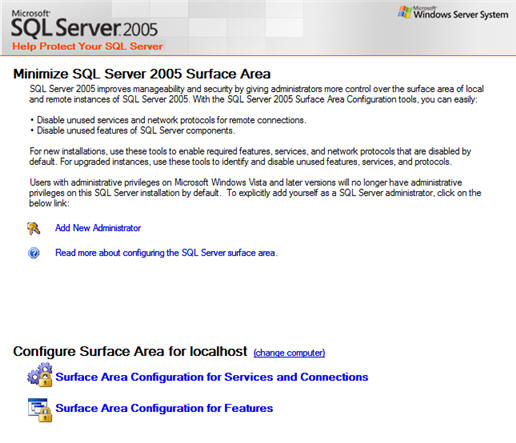
Before SQL 2005 even had an official name and we were all referring to the product as Yukon, we've been told by Microsoft that the release would be "Secure by Default".  What does that mean exactly?  Well, what it means is that the base installation's configuration settings are as restrictive as possible.  You must explicitly enable features and services that provide additional functionality for SQL Server 2005, yet may expose it to unwanted intrusion.  The tool Microsoft has provided for this task is the SQL Server Surface Area Configuration.  This tip will focus on one of the features that is enabled via this tool: Database Mail.
SQL Server 2005 Surface Area Configuration - Database Mail
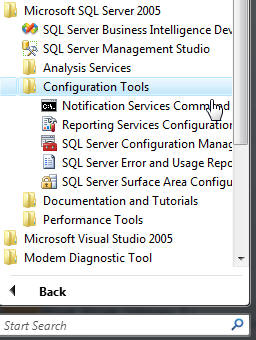
Step 1 - The enabling of this feature is simple enough; launch SQL Server Surface Area Configuration from your Start Menu:

 
Step 2 - Select Surface Area Configuration for Features:

 
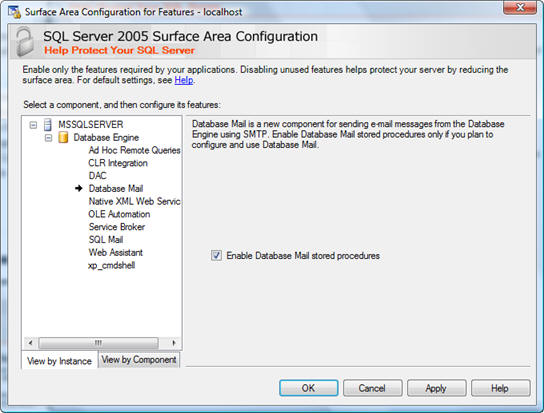
Step 3 - Expand Database Engine, select Database Mail, and check the Enable Database Mail Stored Procedures checkbox.

 
SQL Server 2005 Management Studio - Database Mail Configuration
At this point you've simply enabled the 25 system stored procedures that are used to perform email operations in SQL 2005 under the auspices of Database Mail.  It is now necessary to configure Database Mail for your environment.  For that we must move onto more familiar territory:  SQL Server management Studio (SSMS). 
Database Mail configuration in SQL Server 2005 Management Studio
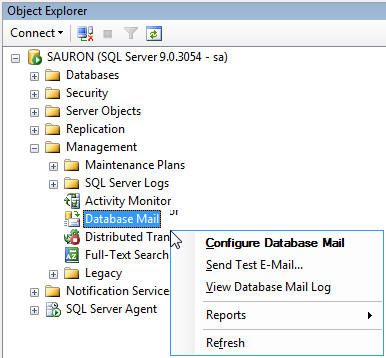
Step 1 - After launching SSMS, you'll need to connect to the server for which you wish to configure Database Mail.  Expand the Management folder, then right-click Database Mail and select Configure Database Mail.

 
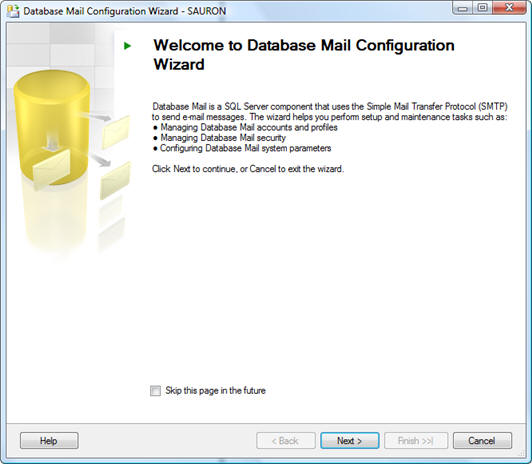
Step 2 - Doing so will launch the Configure Database Mail Wizard.  It may look a little confusing at first, but once we step through it the script at the end of this tip will make more sense.

 
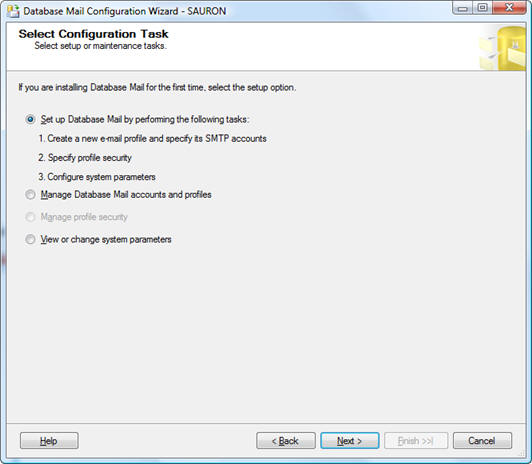
Step 3 - Since we're setting up Database Mail for the first time, select the Setup option as recommended.

 
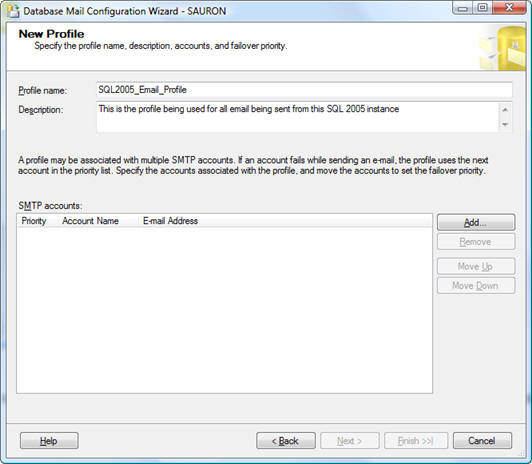
Step 4 - The first step is to set up an email profile to be used with mail being sent from your SQL Server 2005 instance on this screen you will be required to create a profile name, description, and then assign an SMTP account to the profile.

 
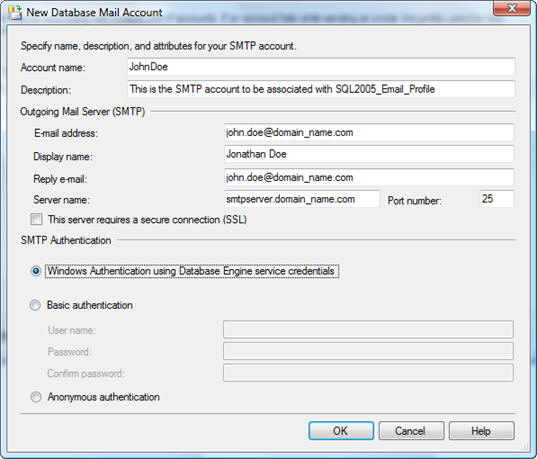
Step 5 - Click the Add button to assign an SMTP account to the profile you're creating.  You may need to work with your Server Technicians and/or Security Teams to collect some of the information you'll need.  It's best to have this ahead of time so as not to hold up the process of configuring Database Mail.  You will need the account name, description, email address (both incoming and outgoing), display name, and SMTP server name for this account.  Be sure to confirm the port number with your Server Technicians as well.  Typically, the default of port 25 will work.  Select how you want to authenticate to the SMTP server and then click OK to proceed.
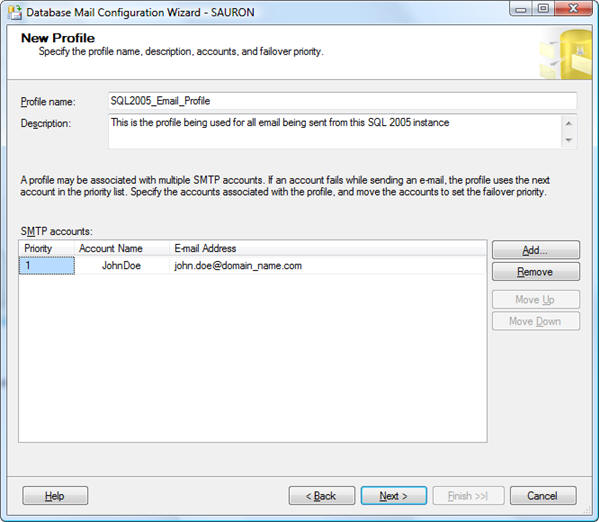
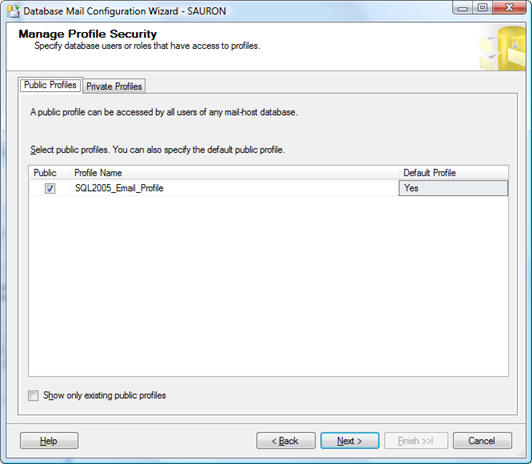
Step 6 - You will notice that the account information is now listed.  You can set up multiple accounts for the Database Mail profile to allow for failover if you so choose.  Click Next to continue onto setting up security for the Database Mail profile.  I've already taken the liberty of setting this up as a Public Profile.  This means that all users of the SQL instance will have access to this Database Mail profile.  You have the option of creating Private Profiles that are only accessible to certain users of the instance.  In our environment we have a default Database Mail profile that is used across all SQL instances.  Your environment may differ.  A Future tip will outline creation and use of Private Database Mail Profiles. 
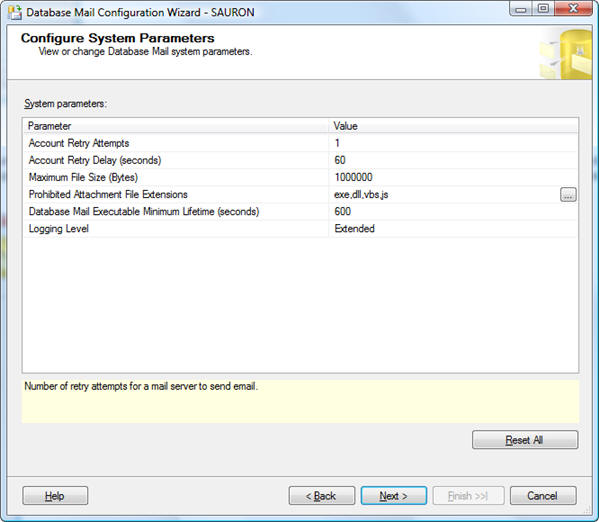
Step 7 - Once your form looks similar to this click Next to proceed to setting up your Database Mail system parameters, that form will look something like the one below.  I make no suggestions here.  You need to configure these settings to best-suit your environment.  In our environment I tend to allow for up to 5 retry attempts, but other than that I leave the defaults unchanged.
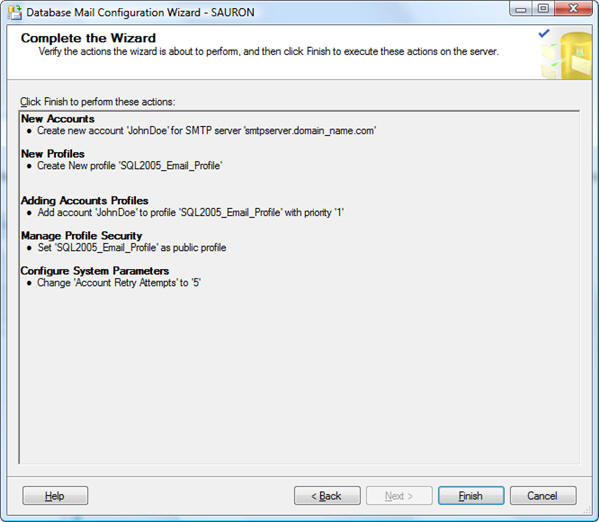
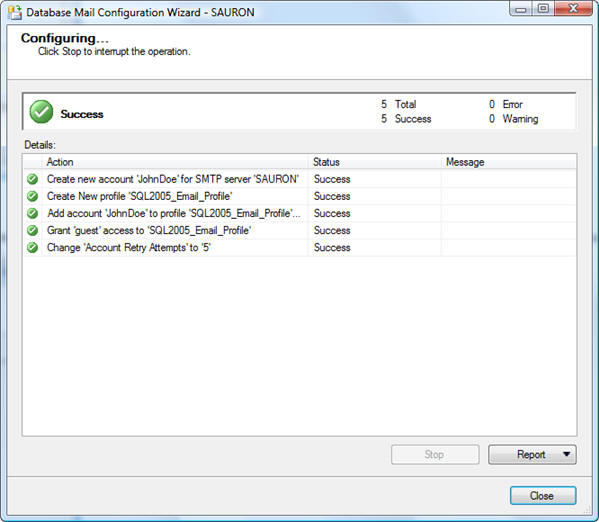
Step 8 - It is finally time to finish up with the wizard.  Click Next for a summary of all the configuration settings you've made.  Once you've reviewed them you can proceed with running the underlying stored procedures that create .

Friday, March 19, 2010

Check Integer Value with function.

IF EXISTS (SELECT * FROM dbo.sysobjects WHERE id = object_id(N'[dbo].[kk_fn_UTIL_IsINT]') AND xtype IN (N'FN', N'IF', N'TF'))
DROP FUNCTION dbo.kk_fn_UTIL_IsINT
GO
CREATE FUNCTION dbo.kk_fn_UTIL_IsINT
(
@strINT varchar(8000)
)
RETURNS int-- NULL = Bad INT encountered, else cleanedup INT returned
/* WITH ENCRYPTION */
AS
/*
* kk_fn_UTIL_IsINTCheck that a String is a valid INT
*SELECT dbo.kk_fn_UTIL_IsINT(MyINTColumn)
*IF dbo.kk_fn_UTIL_IsINT(MyINTColumn) IS NULL ... Bad INT
*
* Returns:
*
*int valueValid integer
*NULLBad parameter passed
*
* HISTORY:
*
* 30-Sep-2005 Started
*/
BEGIN

DECLARE @intValue int

SELECT @strINT = LTRIM(RTRIM(@strINT)),
@intValue = CASE WHEN @strINT NOT LIKE '%[^0-9]%'
THEN CONVERT(int, @strINT)
ELSE NULL
END
RETURN @intValue

/** TEST RIG

SELECTdbo.kk_fn_UTIL_IsINT('123'),IsNumeric('123')
SELECTdbo.kk_fn_UTIL_IsINT(' 123 '),IsNumeric(' 123 ')
SELECTdbo.kk_fn_UTIL_IsINT('123.'),IsNumeric('123.')
SELECTdbo.kk_fn_UTIL_IsINT('123e2'),IsNumeric('123e2')
SELECTdbo.kk_fn_UTIL_IsINT('XYZ'),IsNumeric('XYZ')
SELECTdbo.kk_fn_UTIL_IsINT('-123'),IsNumeric('-123')
SELECTdbo.kk_fn_UTIL_IsINT('-'),IsNumeric('-')

**/
--==================== kk_fn_UTIL_IsINT ====================--
END
GO