Search This Blog & Web

Showing posts with label SQL Azure. Show all posts

Tuesday, March 12, 2013

Creating database using SSMS and Clound MS for SQL Azure

SQL Azure
We have successfully created and configured our Windows Azure trail version account. In this post we will see how can we create SQL Azure database and use simple SQL Queries through Azure Management Studio and SQL Server Management Studio


You can use Windows Azure SQL Database Management Portal or the SQL Server Management Studio (SSMS) client application to administer your SQL Database subscriptions and create and manage associated logical servers and databases. The guidance below describes how to use Management Studio to manage SQL Database logical servers and databases.

This task includes the following steps:
Step 1: Get SQL Server Management Studio
Step 2: Connect to SQL Database
Step 3: Create and manage databases
Step 4: Create and manage logins
Step 5: Monitor SQL Database using Dynamic Management Views

Management Studio is an integrated environment for managing SQL databases. When managing databases on Windows Azure, you can use the Management Studio application installed with SQL Server or download the free SQL Server 2012 Management Studio Express (SSMSE) version.

We have already see how to install SQL Server 2012 Express on your machine.
http://shamas-saeed.blogspot.com/2013/03/step-by-step-installation-sql-server.html

Now we create new database using Windows Azure and SQL Server Managment studio.

Create new database using Windows Azure Portal

Create Database and set its credentials
Selected region where this database 

After creating your database you can see your database lists in all items. Carefully select location.

This is Administrative section for you new DB. From where you can add your Public IP in firewall and create roles.

Register your Public IP address to access this database from your application

Connecting and creating database using SQL Server Management Studio 2012
Connect to Azure SQL Management portal using Manage Button on VM database screen

Successfully connected through Azure Management Portal. Now you can Query and View you database
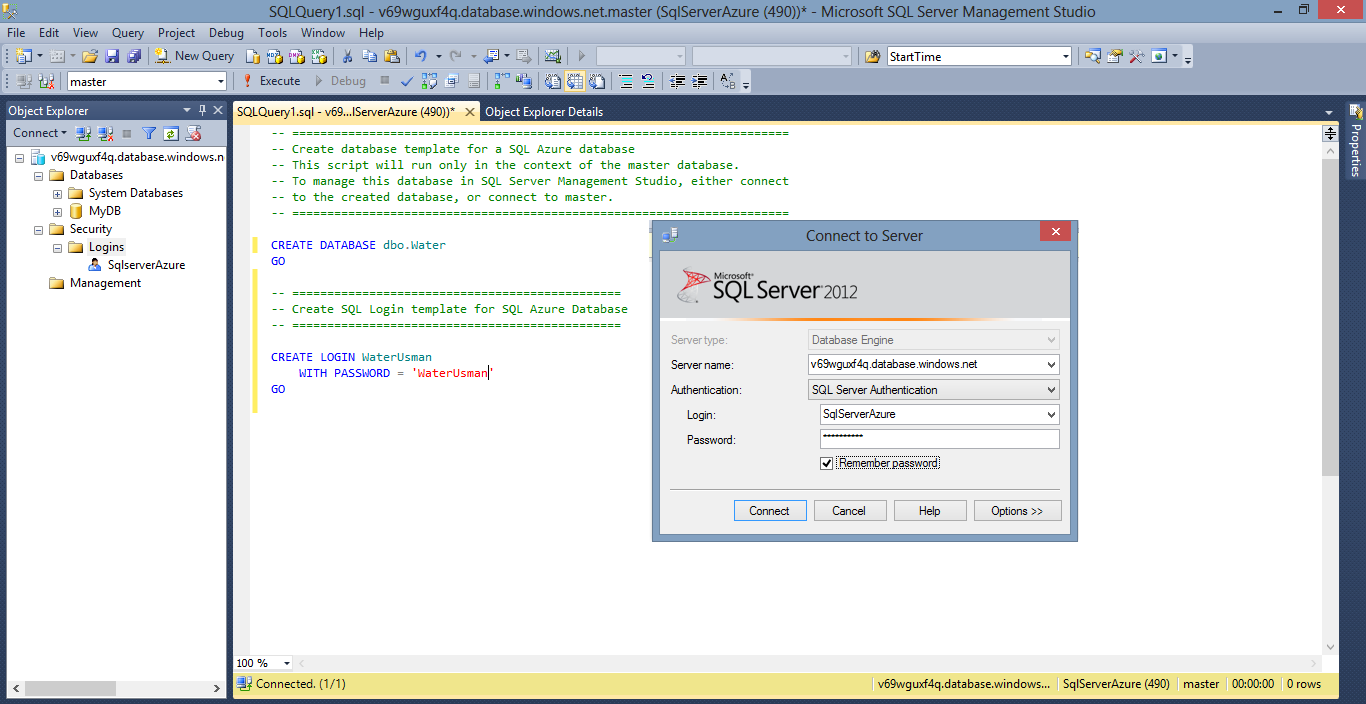
Using 2012 Express Management studio you connect to Azure database

You can view, create, query and administration your database using on premises management studio


Step by Step Windows Azure account creation trail-account


What is Windows Azure?

Windows Azure is a cloud services operating system that serves as the development, service hosting and service management environment for the Windows Azure platform. Windows Azure provides developers with on-demand compute and storage to host, scale, and manage web applications on the internet through Microsoft datacenters.
Windows Azure is a flexible platform that supports multiple languages and integrates with your existing on-premises environment. To build applications and services on Windows Azure, developers can use their existing Microsoft Visual Studio expertise. In addition, Windows Azure supports popular standards, protocols and languages including SOAP, REST, XML, Java, PHP and Ruby. Windows Azure is now commercially available in 40 countries.


Now look at the screen shots and you will know how to create Azure trail version account to introduce yourself with Cloud.

When you try to connect to Windows azure you will get this message

Trail version registration starts here

You need to have Microsoft live account to get Azure registration

You need to give your Master visa card or Credit card Information, You will not charged anything on this information during trail version and without your notification

Verify your account using your Mobile phone information

Now you have registered your account, This update will take 5 to 10 minutes to implement

Here you start configuring your Azure VM account to use Cloud services

Main menu configuration


If you find any notification and error message you can use right bottom of your screen

We have successfully created and configured our Windows Azure trail version account. In next post we will see how can we create SQL Azure database and use simple SQL Queries through Azure Management Studio and SQL Server Management Studio


Friday, June 8, 2012

Windows Azure Lunch event (complete cloud environment)

After successfully lunch SQL Azure services now Microsoft launch Windows Azure. A complete and comprehensive platform for developing and deploying applications. It is now integrated for Windows, Mac, Linux OS developers as well. Supporting more then one Db like SQL SERVER, MySQL, Mongo DB etc.

For detail look at the Scott Guthrie (CVP Windows Azure, Application plateform) presentation at Microsoft platform.

Windows Azure provides a Microsoft Windows Server-based computing environment for applications and persistent storage for both structured and unstructured data, as well as asynchronous messaging. Windows Azure also provides a range of services that helps you connect users and on-premises applications to cloud-hosted applications, manage authentication, use inter-service messaging, and implement data management and related features such as caching.

SQL Azure is essentially SQL Server provided as a service in the cloud.

Major features are:

Compute Environment
  • Windows Azure Compute (Web and Worker Roles).
  • Virtual Machine (VM role). 

Data Management

  • Windows Azure Storage.
  • SQL Azure Database.
  • Data Synchronization.
  • Caching. 

Networking Services

  • Content Delivery Network (CDN). 
  • Virtual Network Connect.
  • Virtual Network Traffic Manager. 
  • Access Control (ACS).
  • Service Bus.

Other Services

  • Business Intelligence Reporting. 
  • Marketplace.